Don’t Wait! – Action Items for Campus-wide Phone Migration

Hello Faculty and Staff!

Beginning 9 a.m. on Wednesday, August 27th the College’s aged telephone system will be replace with Microsoft Teams Phone. The new Teams Phone service will enable our community to keep call features as our old system as well as allow calls to be placed and received outside of the College. Faculty and Staff can also expect many new services and features like setting unique voicemails, receiving voicemail transcriptions and messages via email, and more.

To make this switch as painless as possible, all faculty and staff should take care of the action items listed below.

For questions on this project, please email HelpDesk@kzoo.edu.

Immediate Action Items – Don’t wait!

  • Retrieve any of your voicemails that you want to have from the old system since they will not migrate to Teams Phone. Review Cisco Phone Documentation for instruction to access your voicemails.
    • Want to save your voicemail, but don’t know how to? – Sometimes the simplest tech is the right tech! Simply play your voicemail on your College phone and use personal cell phone recording app to capture and save.
  • Verify and set up your voicemail in Teams. This needs to be done BEFORE the switch date so you can start receiving voicemails in the new system as soon as the switch takes place at 9 a.m. on August 27th.

What to Expect on Switch Day

Date and Time: Wednesday, August 27th – 9:00 a.m.

  • Starting at 9 a.m. off campus calls to your Kalamazoo phone number will now ring on your computer and any other Teams app that you have installed and set up (mobile, laptop, etc.)
  • If you have Teams set up on other devices you can also utilize Teams Phone there in your Call tab. If you need to transfer calls between devices that can also be done easily.
  • Old desk phones should not be used after 9 a.m. Please keep your old phone plugged in so IS can disconnect and collect outdated hardware. It is important that you do not unplug your old phone since it could impact how your office computer works.

Additional Resources

Phone System Upgrade

Over the summmer, Information Services will be launching a new campus telephone infrastucture leveraging Microsoft Teams Phone. Stay tuned for a firm timeline to be announced in the coming weeks, including information gathering, department “champion” early adoption, and training schedules. Please direct any questions to Todd Watson, CIO.

Welcome! – Fall 2024

Welcome!

K Students, Faculty, and Staff,

Welcome, welcome, welcome! Whether it is your first or last year at the College, the Information Services (IS) team is here to help you get ready for the new academic year. To start the quarter off right, please review the list of common resources available to you.

If you need to connect, please feel free to send us an email at HelpDesk@kzoo.edu or stop by the Help Desk in the Upjohn Library Commons (located on the first floor to the right of the grand staircase). We’re open Monday – Friday: 8:00 a.m. – 5:00 p.m. with Student Computer Consultants available during some off hours.

  • Hornet Hive – The Hornet Hive is the campus hub for announcements, event listings, and links to campus web resources.
  • Office 365 – Free access to Office 365 which includes Word, Excel, PowerPoint, OneNote, Sway, Teams, Stream, and online file storage space in OneDrive.
  • Moodle – Where you can access instructor course materials, your grades throughout the quarter, and more.
  • Printing – Information on standard laser printing, color and large format/poster printing, 3D printing, printer locations, cost, print credits allotments, and how to set up wireless printing.
  • Connecting to the Internet – See our instructions for using the eduroam network! Setup takes a few minutes, but it will work all year, all over campus, and at other campuses all over the world.

Visit the Student Tools page for more resources and student IS news throughout the year.

  • New Employee IS Resource List – Are you a new employee and need a starting point on the IS resources available to you? Check out the new employee IS resource list!
  • Moodle Help– Information on requesting a course and getting help with our course management system.
  • Office 365 – Links to Office 365 training and documentation by Microsoft.
  • Phone Services – Quick guides on how to use your office phone along with phone line troubleshooting.

Visit the Faculty Tools page for more information on other resources to utilize throughout the year.

  • New Employee IS Resource List – Are you a new employee and need a starting point on the IS resources available to you? Check out the new employee IS resource list!
  • Office 365 – Links to Office 365 training and documentation by Microsoft.
  • Department Printers – Learn where to purchase printer cartridges and how to get printer repairs
  • Phone Services – Quick guides on how to use your office phone along with phone line troubleshooting.
  • Colleague – For users that need information on our campus administrative system.

View the Staff Tools page for more information on other resources to utilize throughout the year.

Additional Resources Worth Mentioning

  • Answer Bot – Looking for answers but you can’t connect with the Help Desk. Not to worry, try to find what you need using our self-help assistant, Answer Bot.
  • Register an Entertainment Device – Do you have an entertainment device such as a console to use on the Kalamazoo College network? Check out the Register a Device page to follow the required steps and complete the Device Registration form.
  • Wi-Fi Issues
    • Visit the Wi-Fi troubleshooting page to assist you in resolving your issue. Please attempt all troubleshooting tips that apply to your circumstance before completing a report.
    • Due to the complexities of Wi-Fi-related problems, specific details are needed to help resolve Wi-Fi related issues. You must provide the following in order to submit a Wi-Fi Outage Report.

Subscribe to our Posts

Did you miss the latest announcement? Subscribe to receive our posts directly to your inbox!

Stream Video Migration

Microsoft has introduced a new version of Stream for video hosting on SharePoint.  This change requires Kalamazoo College to migrate Stream (Classic) content to SharePoint by early April 2024.

What you need to know:

  • After migration, Stream (on SharePoint) will include the videos that you’ve already uploaded to Stream (Classic) so you can continue to use them.
    • Your videos from Stream (Classic) will appear in your OneDrive in a folder titled “Stream Migrated Videos.”
    • Videos will also be viewable via the Stream start page for sharing, creating playlists, comments, etc.
    • Videos that are part of Microsoft 365 Groups will be moved to that group’s SharePoint site.
  • Videos you have linked or embedded in Teams, Moodle, and elsewhere will automatically redirect and continue to work for one year. However, we recommend updating your links before that.
  • Stream (on SharePoint) includes the important features from Stream (Classic) as well as new capabilities. If you are interested in learning more about the differences, review this short guide.

What you need to do:

  • If you would like to start migrating your videos now, please contact the Help Desk and I.S. will assist you.
  • Any videos not migrated by the beginning of April will be migrated for you.
  • Update your links to videos and embeds within one year after migration.

Please contact Help.Desk@kzoo.edu with questions. 

Printer/copier update schedule

New Canon multi-function print/copy devices will be installed in the following areas on these dates:

  • Dec 14: Computer Labs (Dewing 2nd floor, Dow 2nd floor, Hicks Lab, Fine Arts, Olds Upton 3rd floor, Library all floors)
  • Dec 18-19: Staff Areas (Admissions 2nd floor, Arcus, Dewing 1st Floor, Hicks, Health Center, Mandelle all floors)
  • Dec 20: Anderson Athletics and Fine Arts Lobby/Kitchen
  • Week of Jan 22: Faculty Areas (Dewing 2nd and 3rd floors, Fine Arts Theater, Olds Upton 2nd, 3rd & 4th floors)

For more informaiton about the new printers please see our Dec 5 announcement


Help is on the way! Introducing Answer Bot

friendly robot named Answer Bot.

Hello Hornets!

With the long weekend ahead and finals on the way, Information Services has a friendly new face to help you find what you need when the Help Desk is away…

Introducing Answer Bot, a new interface where K students, faculty, staff, and parents can try to find what they need with suggestions from Answer Bot. Not seeing a solution? Answer Bot also helps you submit a request to the Help Desk much easier.

So, give it a go…

Ask Answer Bot!

New Scheduling Tool for Faculty and Staff

Joshua Moon, Educational Technology Specialist

Microsoft’s Bookings with Me

Microsoft’s “Bookings with Me” (EDIT: also known as Personal Bookings) is now available as a tool for scheduling meetings, advising, and other one-on-one appointments. This is designed to integrate with your Outlook calendar and produce an easy-to-use website for people to book time on your calendar. If you’re previously familiar with Microsoft Bookings, Bookings with Me is a streamlined tool better designed for an individual user to set up quickly.

Want to Learn More About Microsoft Personal Bookings?

Get started with Microsoft Personal Bookings Frequently Asked Questions (FAQ)

Problems or questions?

Contact the Help Desk at 269.337.5800 or HelpDesk@kzoo.edu.

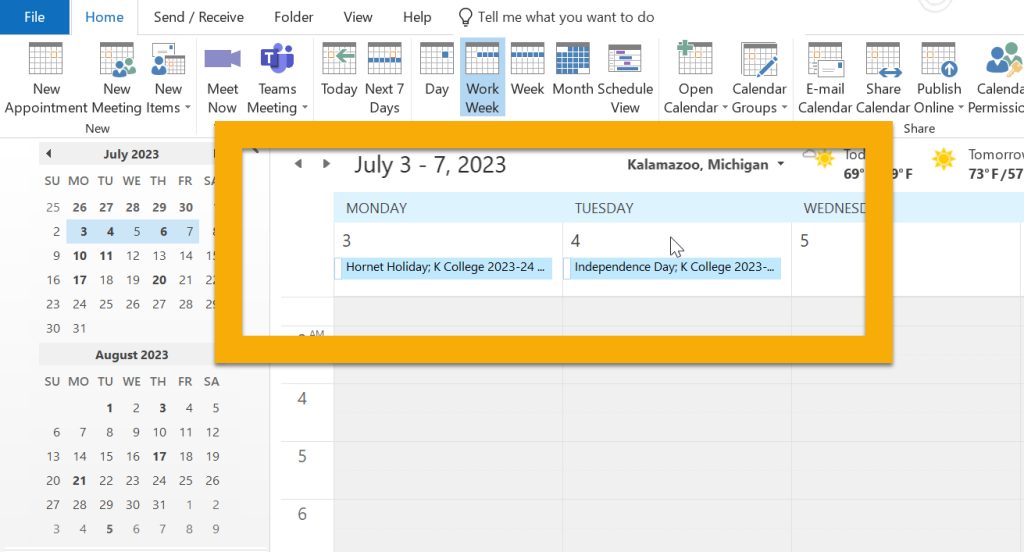
Add the K Holiday Schedule to your Outlook Calendar

screenshot of imported K College Holiday calendar.

Did you know…

You can place Kalamazoo College holidays and “weeks of the quarters” (e.g. Fall Week 1) on your Outlook calendar? It’s true!

To do so follow the K College Calendar Holiday Entries instructions. Also note that this is an Outlook holiday file and is compatible with Outlook for Windows only.

Please contact the Help Desk for more information or additional help.

Subscribe to our Posts

Did you miss the latest IS announcement? Subscribe to receive our posts directly to your inbox!

New Year, New(ish) IS Resources

Happy New Year K Community!

To kick off 2023, here are some new and some not so new IS resources that will come in handy throughout the quarter.

As always, if you need to connect, please feel free to send us an email at HelpDesk@kzoo.edu or stop by the Help Desk in the Upjohn Library Commons (located on the first floor to the right of the grand staircase). We’re open Monday – Friday: 8:00 a.m. – 5:00 p.m. with Student Computer Consultants available during some off hours.

Community Member Pages

Looking for resources depending on whether you’re a student, faculty, or staff member? If so, select the page that relates to you:

New Employees

Did you know there are resources for supervisor’s hiring new employees and onboarding tips for new employees? Check them out:

Partner with IS

K faculty and staff are supposed to consult and partner with IS when considering any technology hardware; software; services; and any cloud or externally hosted systems. It’s true!

Learn how to get started:

Scheduled Maintenance

You can count on Information Services regularly performing upgrades and maintenance Thursday evenings from 5:00 p.m. to 7:00 p.m. During this time you can expect a brief VPN disruption.

Note: IS may not publish a weekly scheduled maintenance post if systems do not directly affect the campus community.

Subscribe to our Posts

Did you miss the latest IS announcement? Subscribe to receive our posts directly to your inbox!

Cybersecurity Awareness Month – Phishing

This week’s post for Cybersecurity Awareness Month covers Phishing.

What is Phishing?

According to the National Cybersecurity Alliance, phishing is “a form of social engineering by which cyber criminals attempt to trick individuals by creating and sending fake emails that appear to be from an authentic source, such as a business or colleague.” Some phishing tactics used by criminals include:

  • Forging a message from a financial institution, claiming you’ve been a victim of fraud
  • Impersonating a supervisor, asking for help with a task
  • Claiming to be a delivery company, alerting you to a problem with a package

When you see these sorts of messages, it’s important to be vigilant.

How do I know if the message is fake?

Some red flags include:

  • Email structure
    • The sending email address doesn’t match the company it’s coming from
    • Poorly-crafted writing with misspellings, and bad grammar
    • Greetings that are ambiguous or very generic
    • Language that’s urgent, alarming, or threatening
  • Requests
    • Strange or abrupt business requests
    • Requests to send personal information
    • Urgency to click on an unfamiliar hyperlink or attachment
  • Offers
    • Contains an offer that’s too good to be true

See a Phishing Email? Here’s what to do…

  1. Pat yourself on the back for recognizing that an email is fake and part of a phishing scam.
  2. Report the phishing message through Outlook by selecting the Junk option in the top ribbon and then Report as Phishing option. If you’re using the web version of Outlook, simply right click on the preview of the phishing email, hover over Report and select Report Phishing.
  3. Not sure? Ask the Help Desk!

Suggested Articles from your IS Team

The content on this page was adapted from the National Cybersecurity Alliance’s information on phishing.

Subscribe to our Posts

Did you miss the latest IS announcement? Subscribe to receive our posts directly to your inbox!