Quick Check: Outlook Time Zone Settings to Avoid Missing Your Advising Meeting

A Message from the Director of Advising

Hi, Students! This is Lesley Clinard the Director of Advising.

We’ve heard from some students who have missed advising (or other) meetings because Outlook or Bookings was set to the wrong time zone. When this happens, meetings may appear at the wrong time, even if the calendar invite looks correct.

Before scheduling or attending an advising appointment, please do this quick check. This only takes about a minute and can prevent missed meetings.

Lesley Clinard, Director of Advising

Quick Check Steps

Check your Outlook time zone

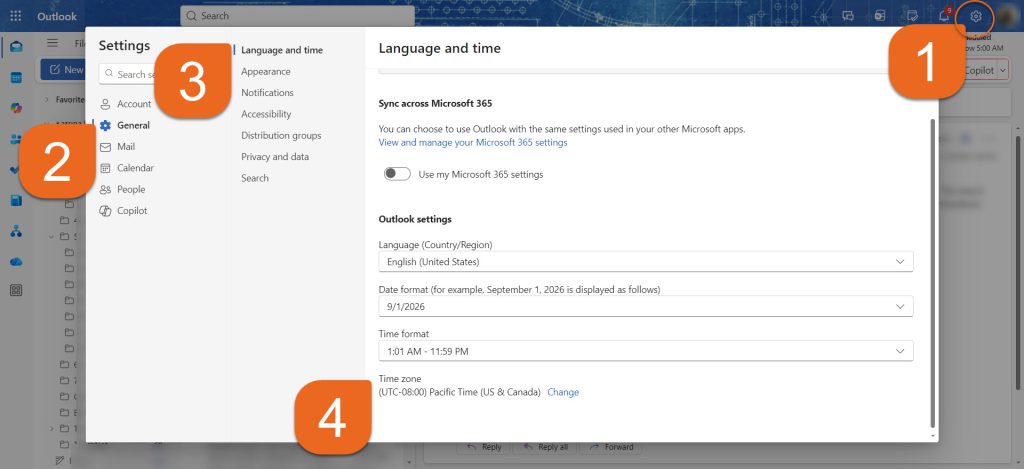
  1. Open Outlook on the web and click the Settings icon (top right)
  2. Go to General
  3. Select Language and Time
  4. Make sure your time zone is set to Eastern Time
    • If it’s not, select Change, update it and Save
If your advisor uses Bookings…

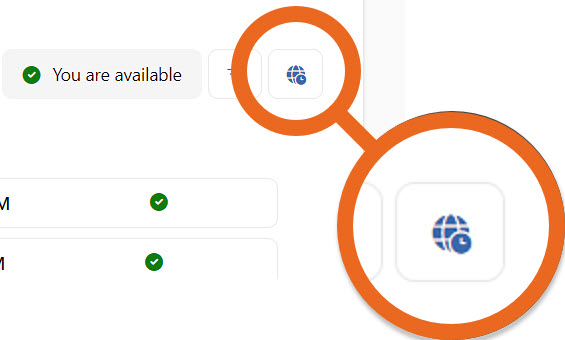
  1. Look for the time zone label/icon on the booking page (for example: “All times shown in Eastern Time”)
  2. Use the time zone dropdown if available
  3. Confirm the meeting time in your Outlook calendar after booking

Note: If your time zone is incorrect, your meeting may appear at different times on your and your advisor’s calendars.
Need Help?

For help with Outlook and Bookings settings: Contact the Help Desk at Help.Desk@kzoo.edu

For advising questions: Message me, Lesley Clinard, directly in Teams.

New Scheduling Tool for Faculty and Staff

Joshua Moon, Educational Technology Specialist

Microsoft’s Bookings with Me

Microsoft’s “Bookings with Me” (EDIT: also known as Personal Bookings) is now available as a tool for scheduling meetings, advising, and other one-on-one appointments. This is designed to integrate with your Outlook calendar and produce an easy-to-use website for people to book time on your calendar. If you’re previously familiar with Microsoft Bookings, Bookings with Me is a streamlined tool better designed for an individual user to set up quickly.

Want to Learn More About Microsoft Personal Bookings?

Get started with Microsoft Personal Bookings Frequently Asked Questions (FAQ)

Problems or questions?

Contact the Help Desk at 269.337.5800 or HelpDesk@kzoo.edu.

New Tool Available – Microsoft Bookings

Hello K College Faculty and Staff,

We would like to share a new tool available to you! Microsoft Bookings may be useful to individuals or departments that offer appointments for services.

Microsoft Bookings logo.

Want to Learn More About Microsoft Bookings?

Microsoft Bookings Support

We are still refining the best ways to support you and welcome your feedback during the process! If you would like to receive additional support for Bookings, please contact the Help Desk at HelpDesk@kzoo.edu with questions.